Oppermann
NFC-Tool
With the Oppermann NFC Tool app you can parameterize transmitters of the SENSO-X® and OPP-SENS® series via your smartphone with ease.
Lorem ipsum dolor sit amet, consectetur adipiscing elit, sed do eiusmod tempor.
With the Oppermann NFC Tool app you can parameterize transmitters of the SENSO-X® and OPP-SENS® series via your smartphone with ease.
1
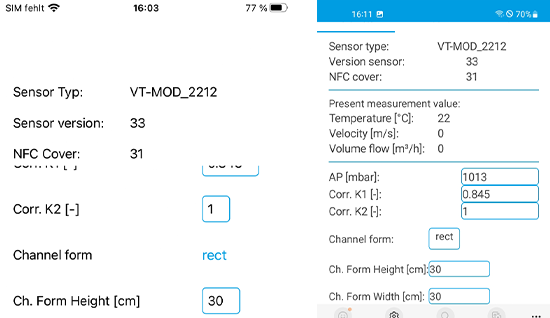
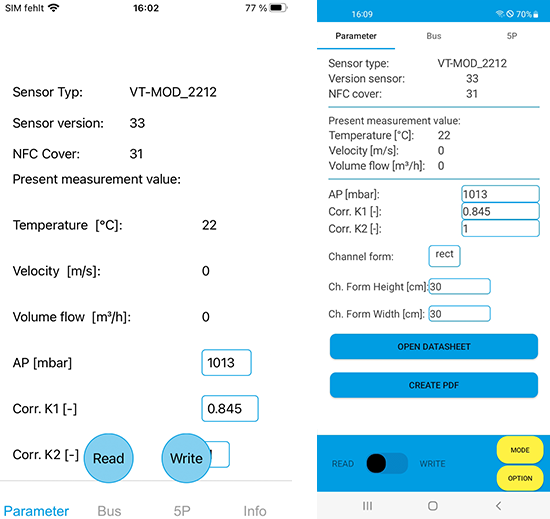
When the transmitter data have been transmitted the display shows the transmitter type, the most recent measurement data and all variable parameters, the latter outlined in blue.
2
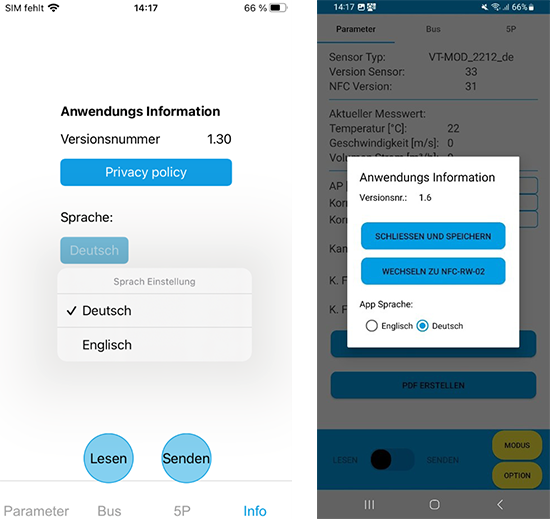
Use the “INFO” (iOS) or “OPTION” (Android) button to switch between German and English and restart the app after confirming your choice.
3
Variable parameters may either take on numerical values
or the specification of an option from a drop-down menu.
After entering the new value, tap on the display anywhere outside the keypad (iOS) or
tap “Continue” (Android)
to close the keypad.
4
To transmit the changes to the transmitter, click “Write” (iOS)
at the bottom of the screen or shift the slide switch to “WRITE”
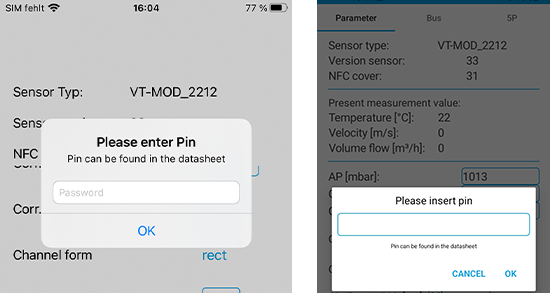
(Android). You are then asked for a PIN. The PIN is “0000” and
cannot be changed. This is to prevent inadvertent parameter
changes.
Move your smartphone close to the cover of the NFC display
to transmit the data.
5
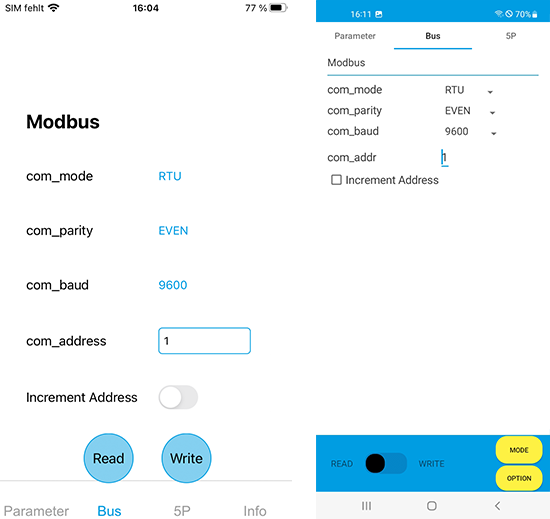
A button either below (iOS) or above (Android) the screen
takes you to the menu for the bus settings, provided the
transmitter has a Modbus- or a BACnet interface.
Changes can be made either here or in the measurement
parameter settings mentioned above. After completing
your entries, use “Write” (iOS) or “WRITE” (Android) to send
them to the transmitter.
6
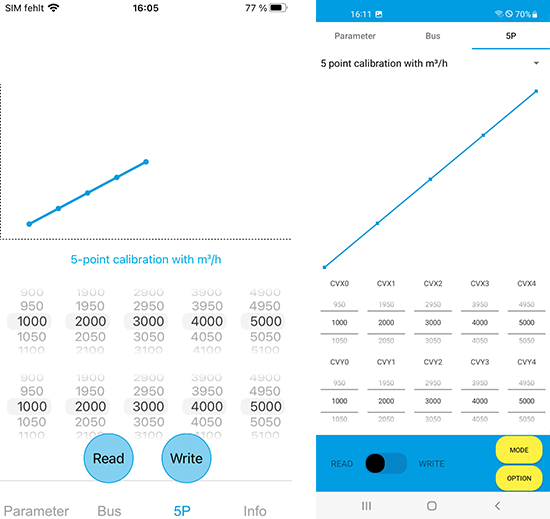
In another window you will find the settings for 5P calibration.
Use the scroll wheels to change the XY coordinates of
the reference points of the calibration characteristic curve.
The characteristic curve will change shape accordingly. When
you are done changing the settings, click on “Write” or shift
the slide switch to “WRITE” and move your smartphone close
to the display cover to transmit the data.
With devices that have two parameters, such as humidity and
temperature, select the desired parameter by clicking on “5
point calibration…”
7
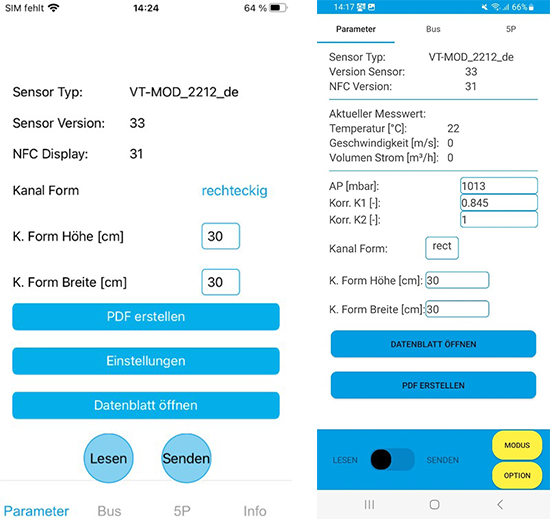
To call up the data sheet of a specific transmitter, go to the
“Parameter” page.
Use “Create PDF” to create a pdf document showing
the current settings. The PDF will be stored in your
smartphone’s internal memory. Look for a folder named
“Oppermann” for this purpose.
8
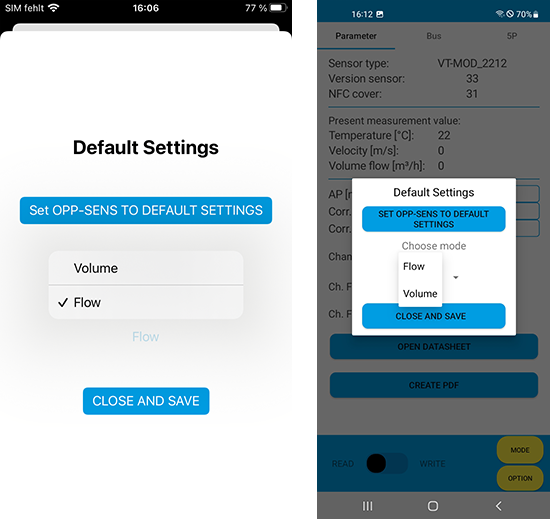
Use “Settings” (iOS) or “Mode” (Android) to access the submenu for restoring the transmitter to its default settings. With some models it is also possible to change the operating mode, i.e. switch from volume flow to flow velocity or from enthalpy to absolute humidity.